EasyCompare for Mac

A focused comparison and relative intelligence platform for all your watchlists and ideas.

Say goodbye to short-term bias, FOMO and speculative investments.Beat short-term bias, FOMO, and speculation. Bring your holdings, watchlists, and new ideas into one live comparison on your Mac: up to 200 stocks, ETFs, and funds at once, with immediate relative perspective across any timeframe and special scenarios, and hedge-fund-level quant insights.Bring your holdings, watchlists, and ideas into one live view on your Mac: up to 200 stocks, ETFs, and funds, across any timeframe and special scenarios with hedge-fund-level quant insights.

Free to use · macOS 14 Sonoma or later · Apple silicon and Intel

Install with Homebrew Optional
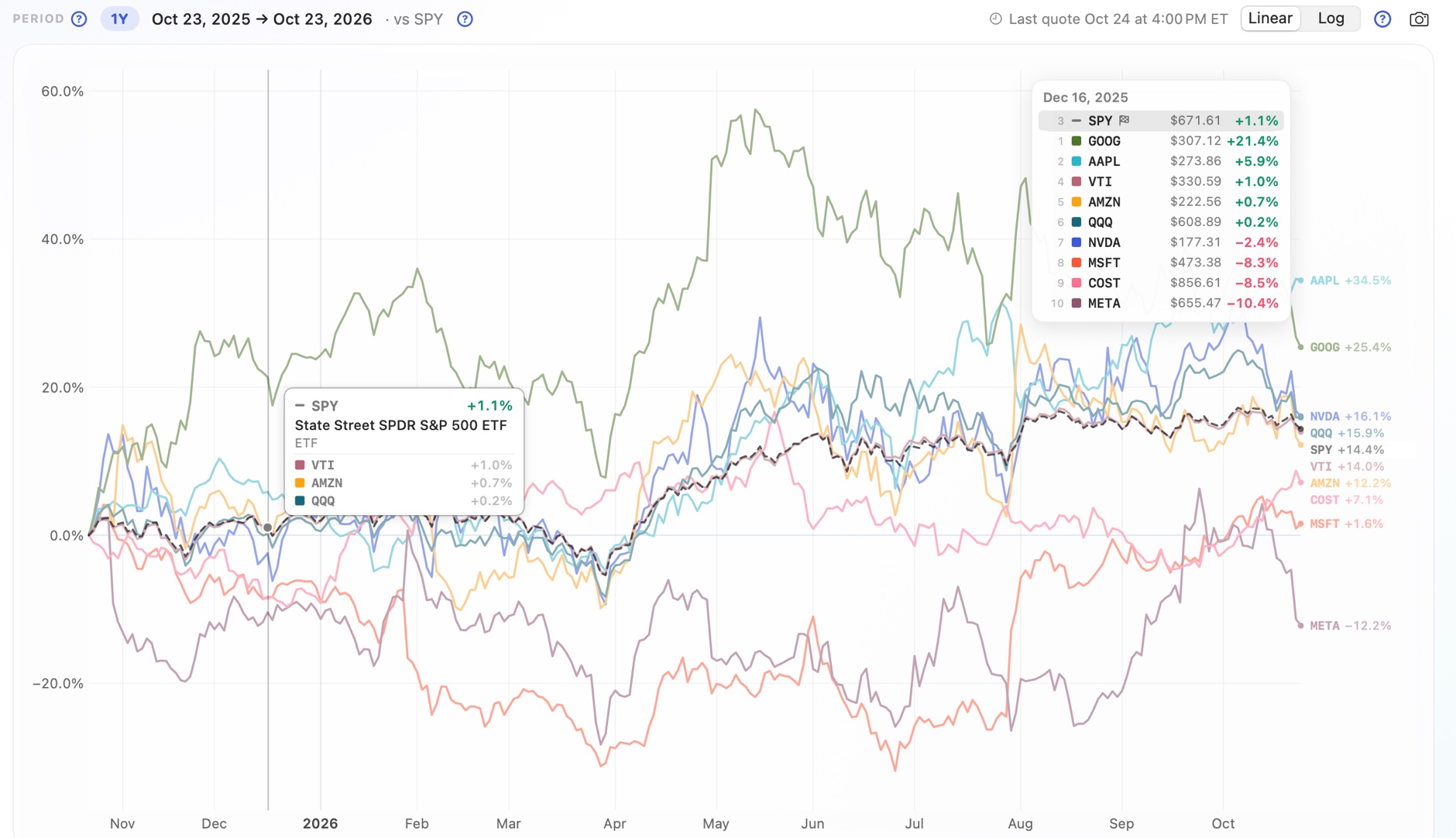
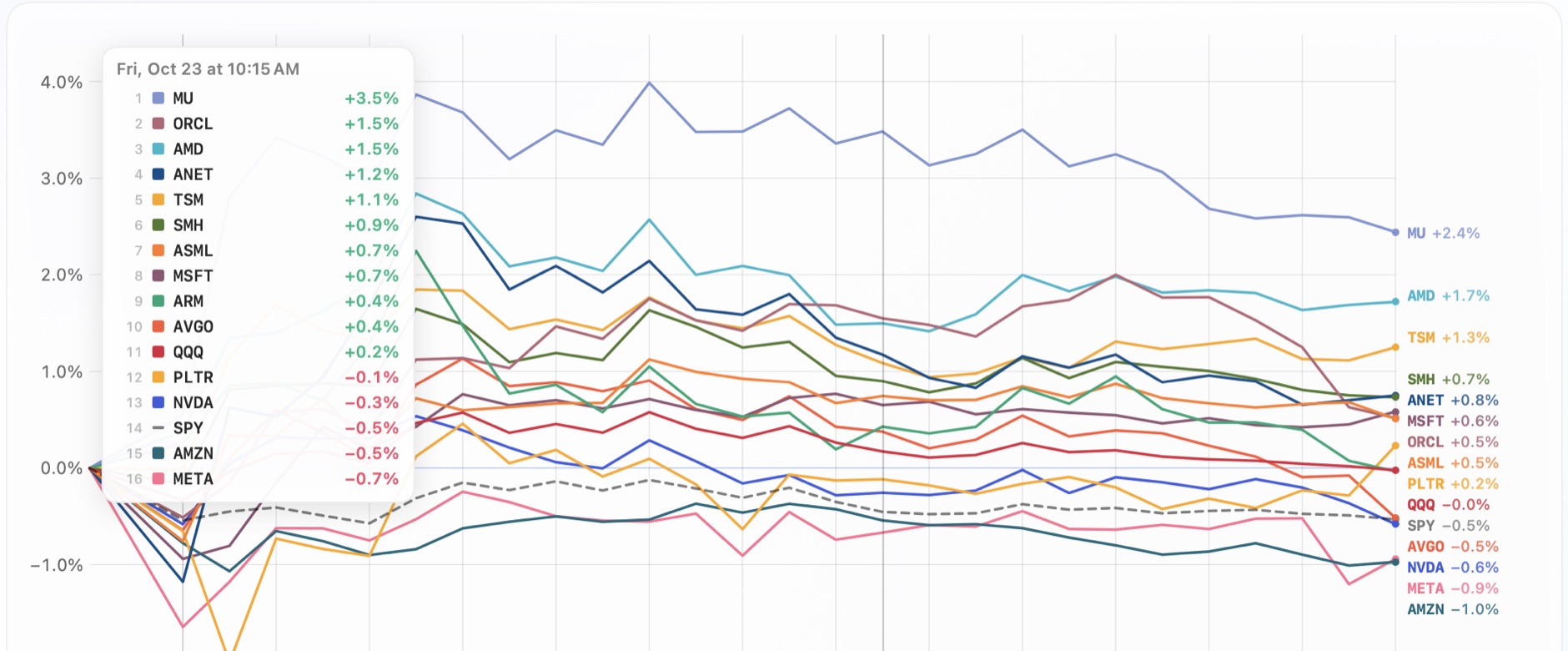
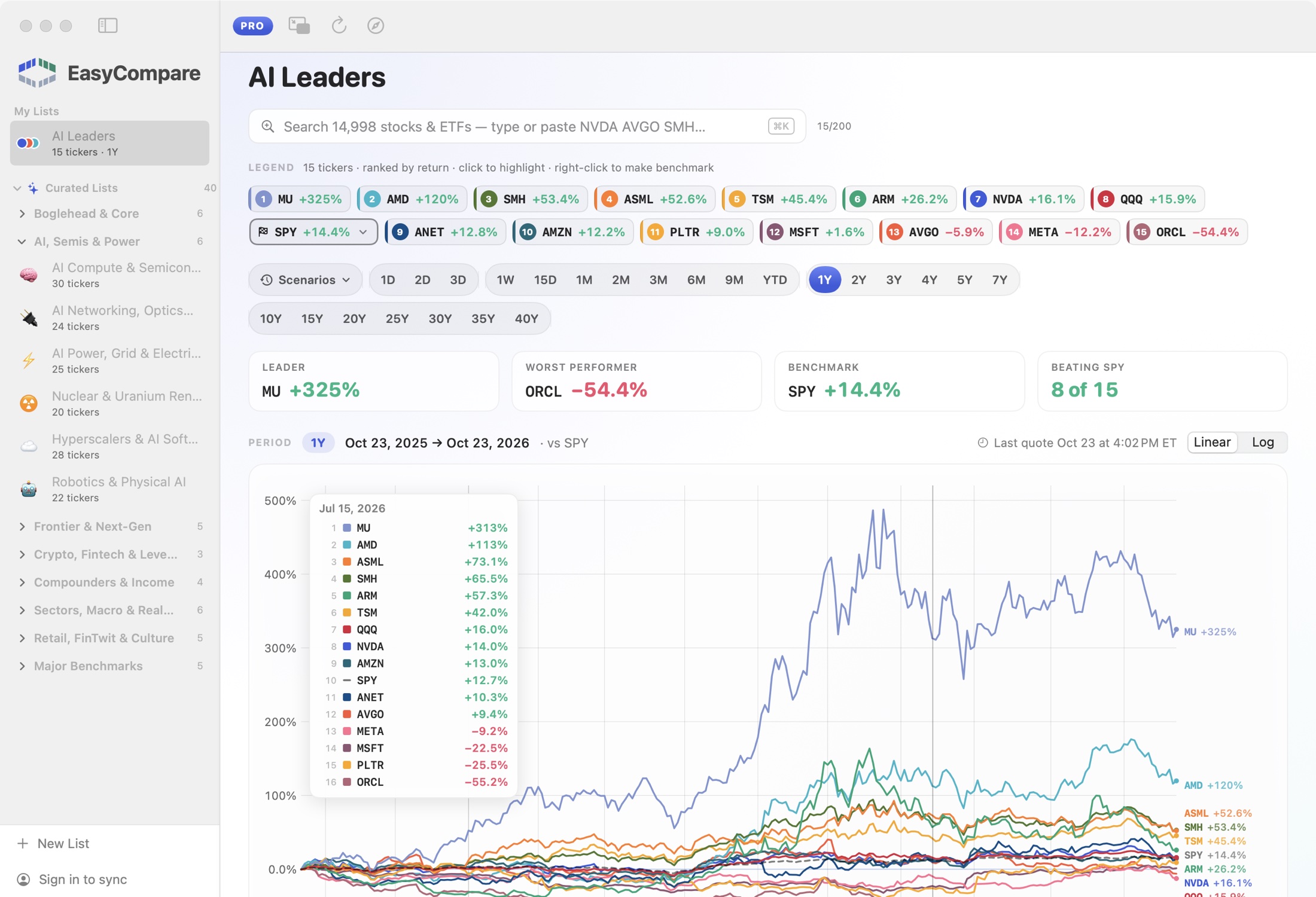
EasyCompare for Mac comparing 15 AI leaders against SPY over one year, with a ranked crosshair readout
  1. 01

    Turn your watchlists into deep perspective with zero work.

  2. 02

    Sophisticated visual interface for flexible comparisons.

  3. 03

    Quantitative rigor to compare risk, returns and drawdowns.

  4. 04

    Built for speed. Most updates are less than a second.

New in 1.1 See what's new

Zero-friction workflow

It couldn't get any simpler.

Your part · 10 seconds of input

Step 1 · Your input

Enter your holdings and ideas

  • Type a symbol or company name, or paste a whole list at once
  • Related tickers: EasyCompare suggests what to compare next, based on what you've entered
  • 40 curated lists: jump-start from broad ETFs to focused themes like AI and hyperscalers
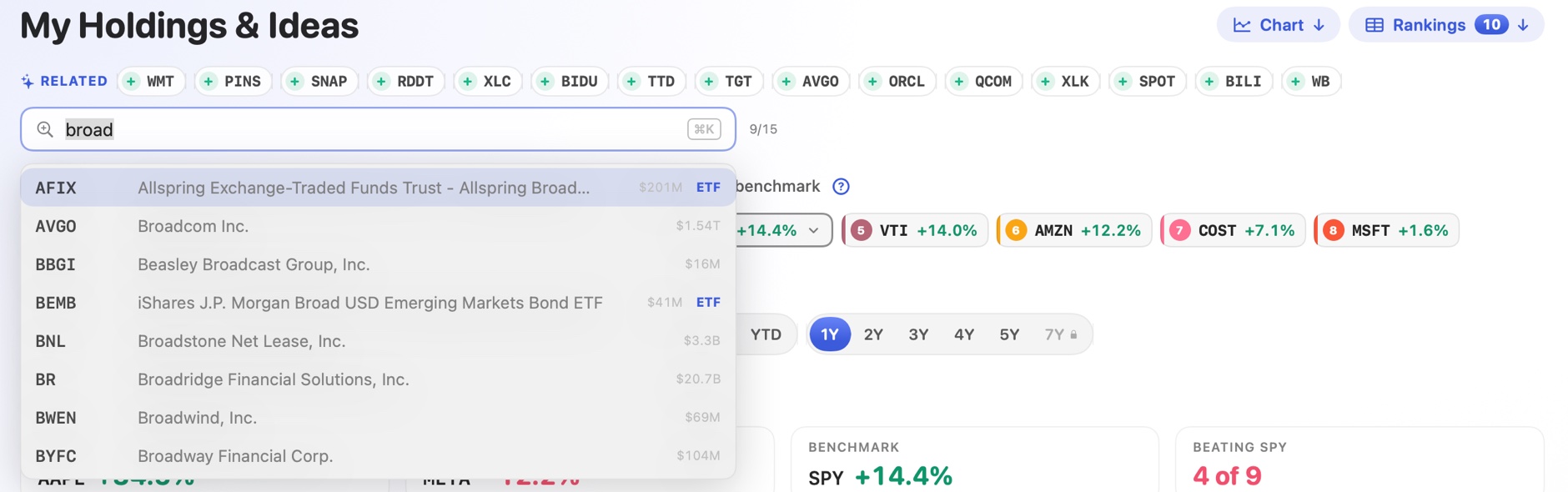
Typing “broad” in the ticker search shows matching stocks and ETFs, with related tickers suggested above

⚡ Relative intelligenceYou instantly get both views with zero work:

Step 2 · Instant visual clarity

Powerful visual comparison with deep interactivity

Every line starts at 0% on the same day, with a ranked crosshair, line labels, pinning and one-click period switching.

The comparison chart for a list of holdings over one year, with a ranked readout and a hovered line identified
Step 3 · Instant quant rankings

Every metric ranked and color-coded

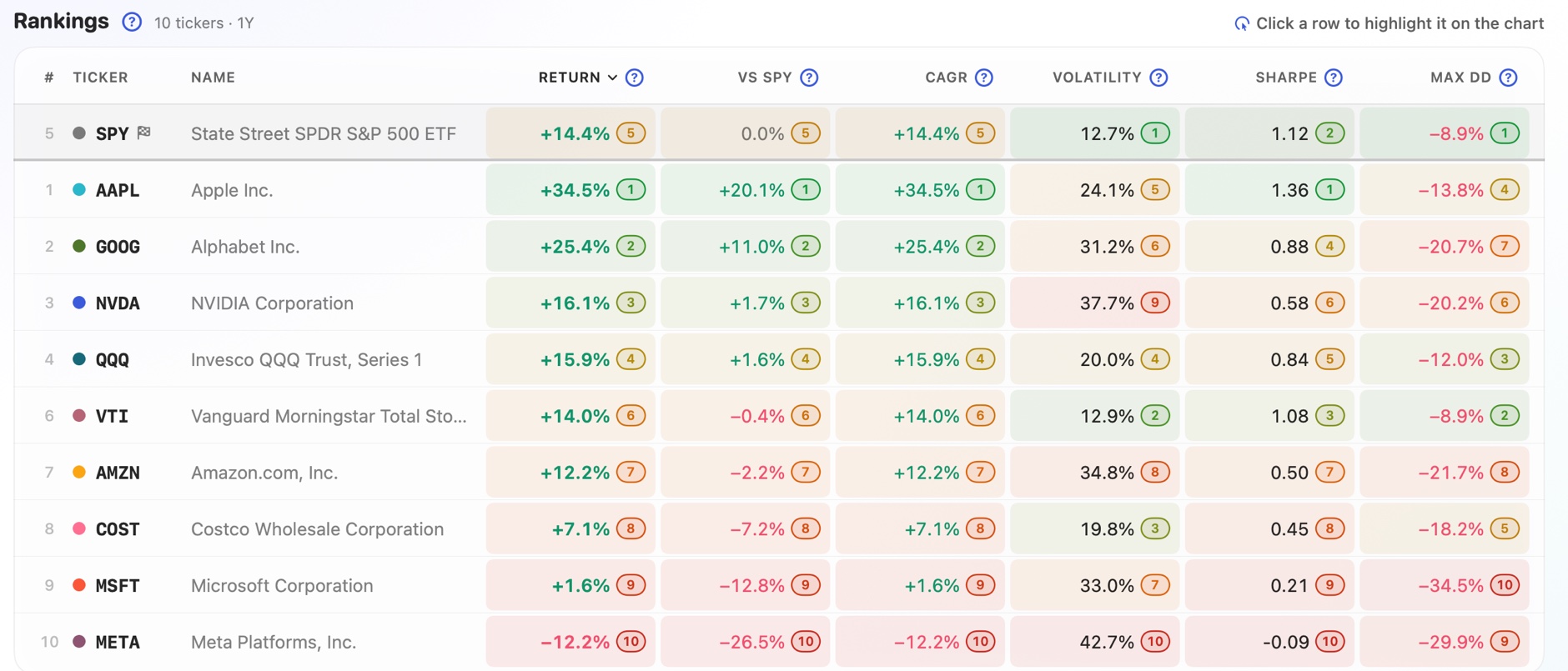
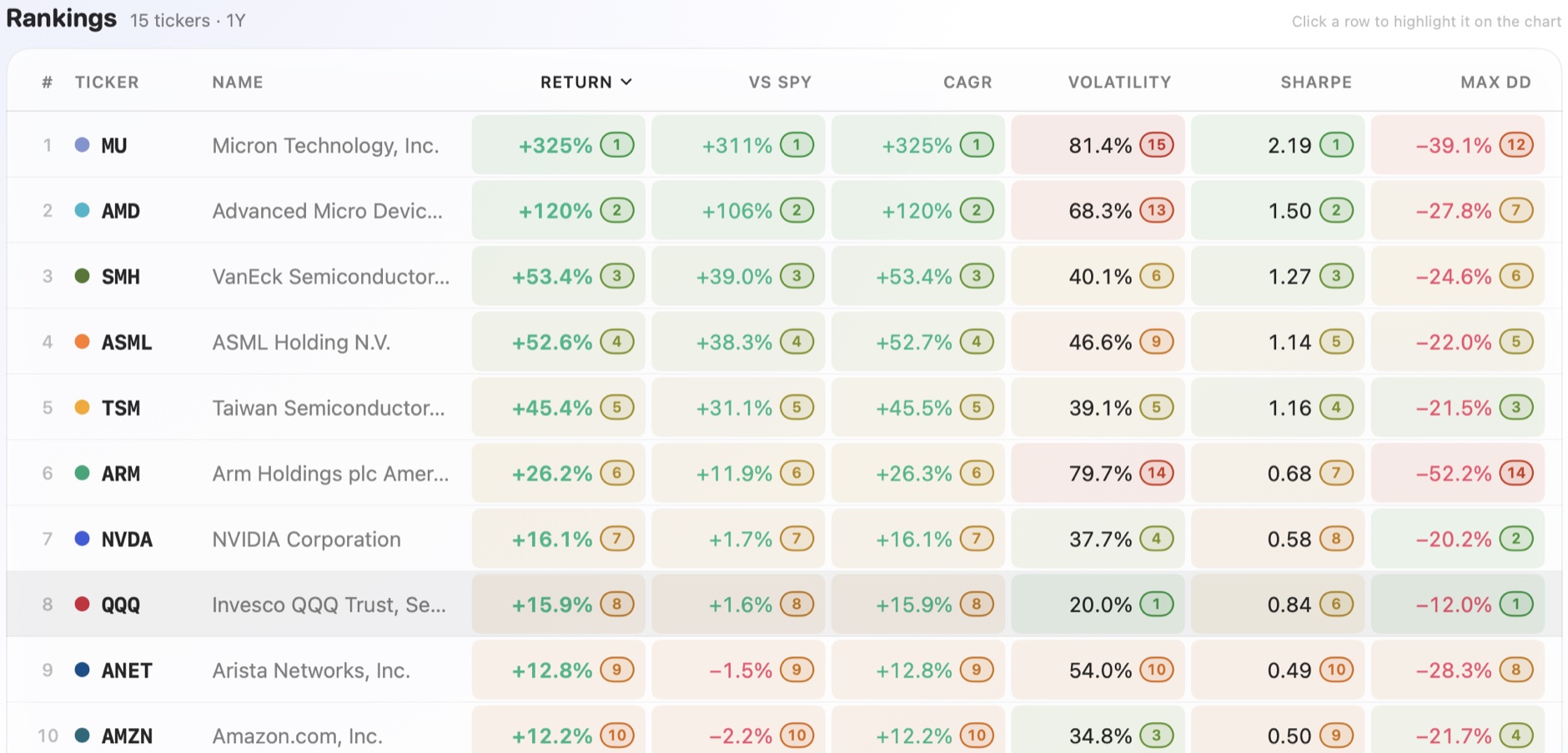
Return, CAGR, volatility, Sharpe ratio and max drawdown, each ranked across the list and against the benchmark.

The rankings table with every metric ranked and color-coded

Why EasyCompare

Many investing mistakes are comparison mistakes.

A quote page tells you a lot about one ticker and little about its alternatives. When that comparison is missing, a few common biases fill the gap.

Short-term bias

A 5% day feels like a winner, even after six months of trailing the S&P 500.

How EasyCompare helps

  • Switch from 1 day to 40 years in one click
  • Leader, worst performer and “beating SPY” summarised for every period

Following the pundits

Forecasts are confident, and can’t be checked until it’s too late.

How EasyCompare helps

  • Replay past crashes and bull markets with Scenarios
  • Volatility and max drawdown ranked side by side

FOMO

By the time a move makes the news, most of it has usually happened.

How EasyCompare helps

  • Compare a ticker with its sector and the market over several windows
  • See whether a lead is new, long-running or already fading

Judging in isolation

“Up 12% this year” sounds good, until a similar fund did 20% with smaller swings.

How EasyCompare helps

  • Put up to 200 stocks, ETFs and funds on one chart
  • Return, Sharpe and drawdown ranked against your benchmark

Compare the candidates on equal terms.

EasyCompare starts every ticker at 0% on the same day, ranks it against a benchmark, and lets you move between days, months and decades. A sharp one-week drop can then be read against the five-year trend, and a change in sector leadership shows up as one line overtaking another.

Headline features

Seven features for comparing investments side by side.

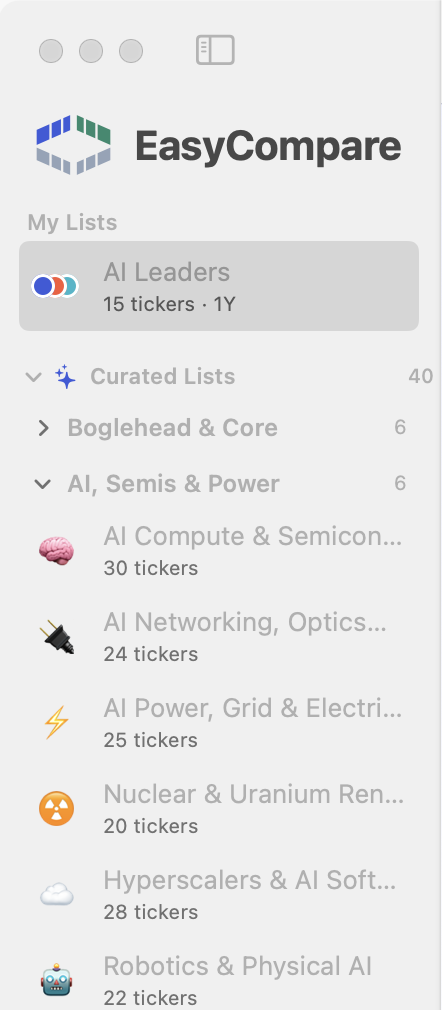
The EasyCompare sidebar with your lists and curated lists

Comparison lists

Organise your ideas as lists of alternatives.

A list is a group of tickers you want to weigh against each other, plus a benchmark they need to beat. Build your own, or start from one of about 40 curated lists covering themes, sectors, income, crypto and the major benchmarks.

  • Lists sync with your EasyCompare account on the web
  • The lists you opened most recently stay at the top
  • Each list remembers its period and highlighted tickers

One chart, every horizon

Every horizon, from today's session to forty years.

Every ticker starts at 0% on the first day of the period, so the chart compares percentage performance rather than share price. One click moves between intraday, weeks, months and decades, which shows a short-term move at its true size next to the long-term trend.

  • Presets from 1D to 40Y, with 15-minute intraday bars on Pro
  • Nights, weekends and holidays are removed from the time axis, so lines don't jump across closed markets
  • Log scale for long periods, so equal percentage moves look equal
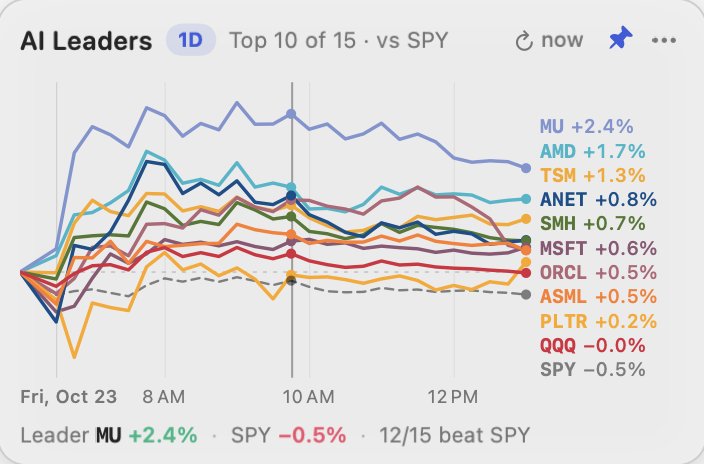
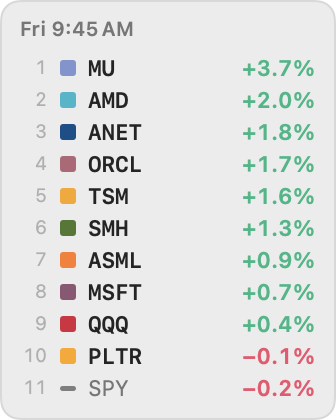
A one-day intraday comparison chart The legend, ranked by return

Scenarios

See how your holdings behaved in crashes and bull markets.

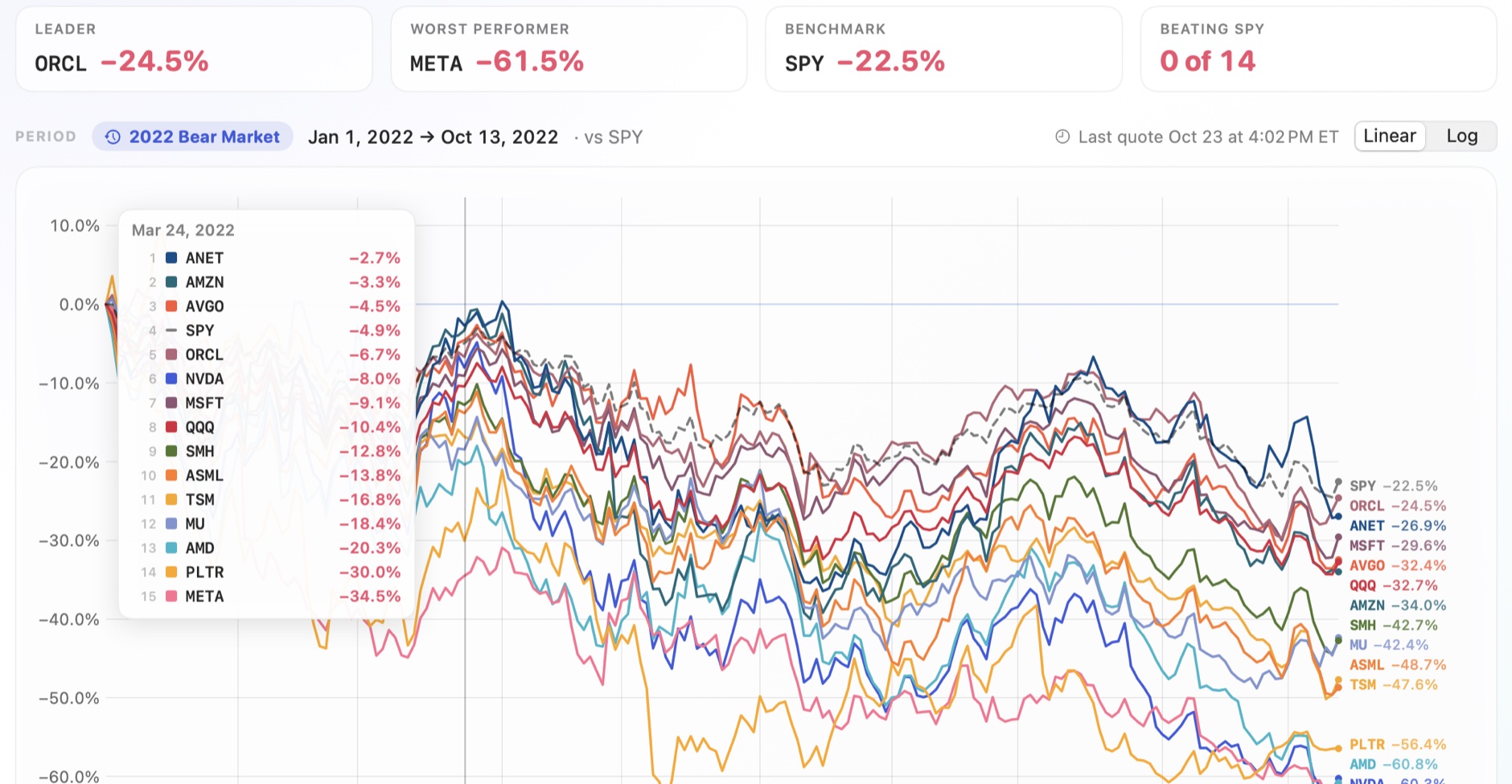
Pick a historical period and the chart jumps to it: the 2008 financial crisis, the COVID crash, the 2022 bear market, the April 2025 Liberation Day selloff, or bull runs such as the AI boom. You can see which holdings fell least and which recovered fastest.

  • 20 curated periods, from the 1998 LTCM crisis to 2026
  • The scenarios menu sits next to the time presets
The scenarios menu with crises and bull markets

Benchmark first

Every list is measured against a benchmark.

A return means little until you compare it with what you could have bought instead. Each list has a benchmark, SPY unless you choose another, and the summary shows the leader, the laggard and how many tickers beat the benchmark over the period.

  • Summary cards for the leader, worst performer, benchmark and number beating it
  • A vs-benchmark column for every ticker
  • Right-click any ticker to make it the benchmark
Summary cards: leader, worst performer, benchmark, and how many beat SPY

Quantitative metrics

Rank every ticker on risk as well as return.

The rankings table scores each ticker on six metrics. Return and CAGR measure the reward, vs benchmark shows whether it beat the market, and volatility, Sharpe ratio and max drawdown describe the risk taken to earn it. Each cell is coloured by its rank in the column, so the strongest and weakest stand out before you read the numbers.

  • Sort by any metric with one click
  • Rank badges show where each ticker places in every column
  • Click a row to highlight it on the chart
The rankings table, colour-ranked on return, vs SPY, CAGR, volatility, Sharpe and max drawdown

Return

The total gain or loss over the selected period.

The starting point for every comparison.

vs Benchmark

The ticker's return minus the benchmark's return over the same period.

A positive number means it beat the alternative you could have bought instead.

CAGR

The average yearly growth rate. It lets you compare a 3-year result with a 10-year result on equal terms.

Puts results from periods of different lengths on a per-year basis.

Volatility

A measure of risk: how much the price swings up and down. It's the annualised standard deviation of returns.

Larger swings are harder to hold through and usually mean more risk.

Sharpe ratio

Performance versus risk: how much return a ticker earned for each unit of risk it took. It's annualised return divided by volatility.

Shows how much return each unit of volatility bought. Over several years, above 1 is generally considered good.

Max drawdown

The worst loss along the way: the biggest drop from a high point to a later low within the period.

The worst loss you would have had to sit through to earn the period's return.

Highlighting

Bring one line forward without losing the rest.

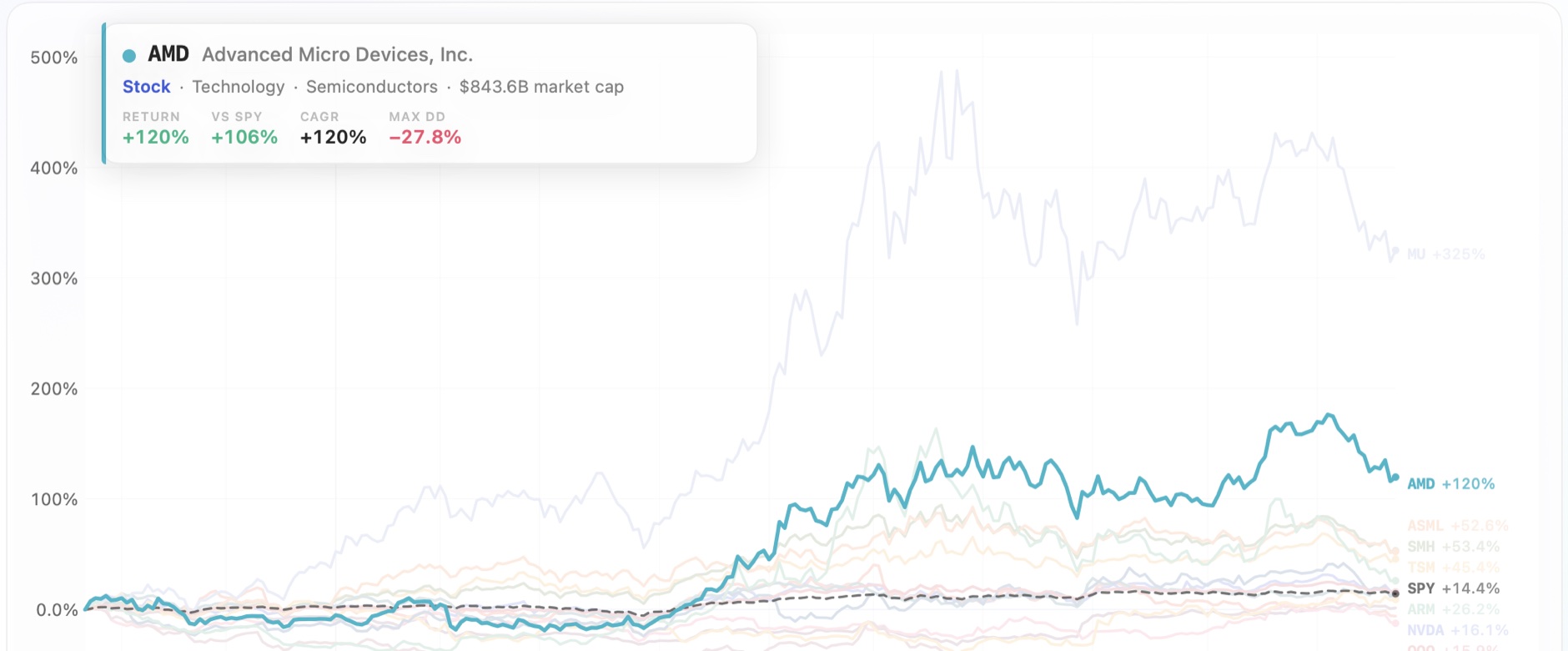
Hover a ticker in the legend, or its label at the end of the line, and its line comes forward while the others fade. Click to pin as many tickers as you like. As you move across the chart, a readout ranks every ticker on the date under the cursor, with its price and return.

  • The legend is sorted by return
  • Hover a ticker for an info card with its key metrics
  • Pinned tickers stay with the list until you clear them
AMD highlighted on the chart with its info card

Scale and speed

Compare up to 200 tickers on one chart.

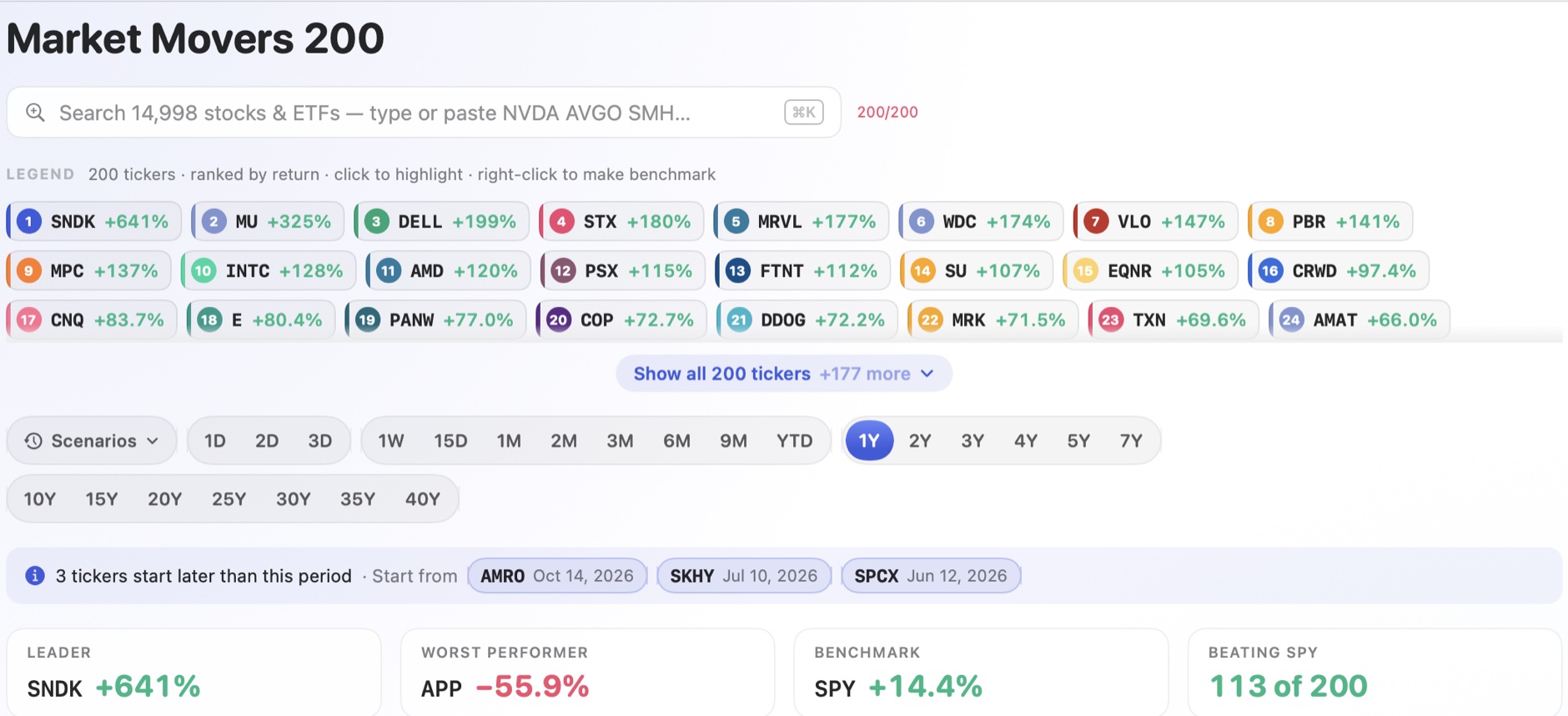
Compare a whole portfolio, sector or watchlist at once. Our dedicated servers keep decades of daily and intraday prices in memory, so a comparison is computed without reading from disk. In our tests, a 200-ticker, one-year comparison arrives in under a second. The Mac app draws the chart natively, so hovering, scrolling and switching periods stay smooth with every line on screen.

  • Prices are served from memory on dedicated servers, not read from disk
  • Every metric is recalculated when you change the tickers or the period
  • Up to 200 tickers per list on Pro
  • Search about 15,000 US stocks, ETFs and funds, or paste a whole list at once
A list of 200 market movers compared in one view

Thoughtful details

Many thoughtful details that make the workflow easier.

Beyond the seven headline features, many smaller tools remove a step or answer a question without leaving the chart.

Hover the line labels

The label at the end of each line highlights it too. Click a label to pin that ticker, and page through labels with the arrows when they don't all fit.

A ranked crosshair

Move across the chart to rank every ticker on that day or, intraday, that 15-minute bar.

Swap the benchmark

Right-click any ticker in the legend or table and choose Make Benchmark.

Late starters, flagged

If a ticker began trading after the period starts, a note offers to start the comparison from its first day, so every line covers the same dates.

Ticker info cards

Hover a ticker to see its name, sector, market cap and key metrics.

Search and paste

Search about 15,000 tickers by symbol or name, or paste several at once, such as NVDA AVGO SMH. Tickers already in the list are marked.

Jump to any list

Press / and type a few letters of a name to open any of your lists or curated lists.

Highlights remembered

Each list keeps its pinned tickers.

Most recent first

Lists you opened last rise to the top of the sidebar, as on the web.

Synced with the web

Sign in to keep your lists in sync with easycompare.io, and open any list in the browser.

Fresh prices

Refresh any time with ⌘R. The time of the latest quote, in US Eastern time, is shown above the chart.

For example, ARM began trading in September 2023, so a 5-year view offers to start from its first day:

A note offering to start the comparison from ARM's first trading day

Keyboard shortcuts

/
Jump to any list
⌘K
Add tickers
⌘1 – ⌘9
Jump to a time preset
⌘R
Refresh prices
⇧⌘L
Toggle log scale
⇧⌘C
Copy the chart as an image
⌘N
New comparison list
⌘,
Settings and sign in
PRO

What Pro adds

200 tickers per list

Free lists hold 15.

Unlimited lists

Free keeps 1 editable list, plus every curated list.

40 years of history

Free covers 5 years.

Intraday

1D, 2D and 3D in 15-minute steps.

One Pro account covers the Mac app, the web app and every QuantCommons tool. See Pro plans

New in 1.1

Find what to compare next, and share what you found.

Chart export

Share any chart as an image.

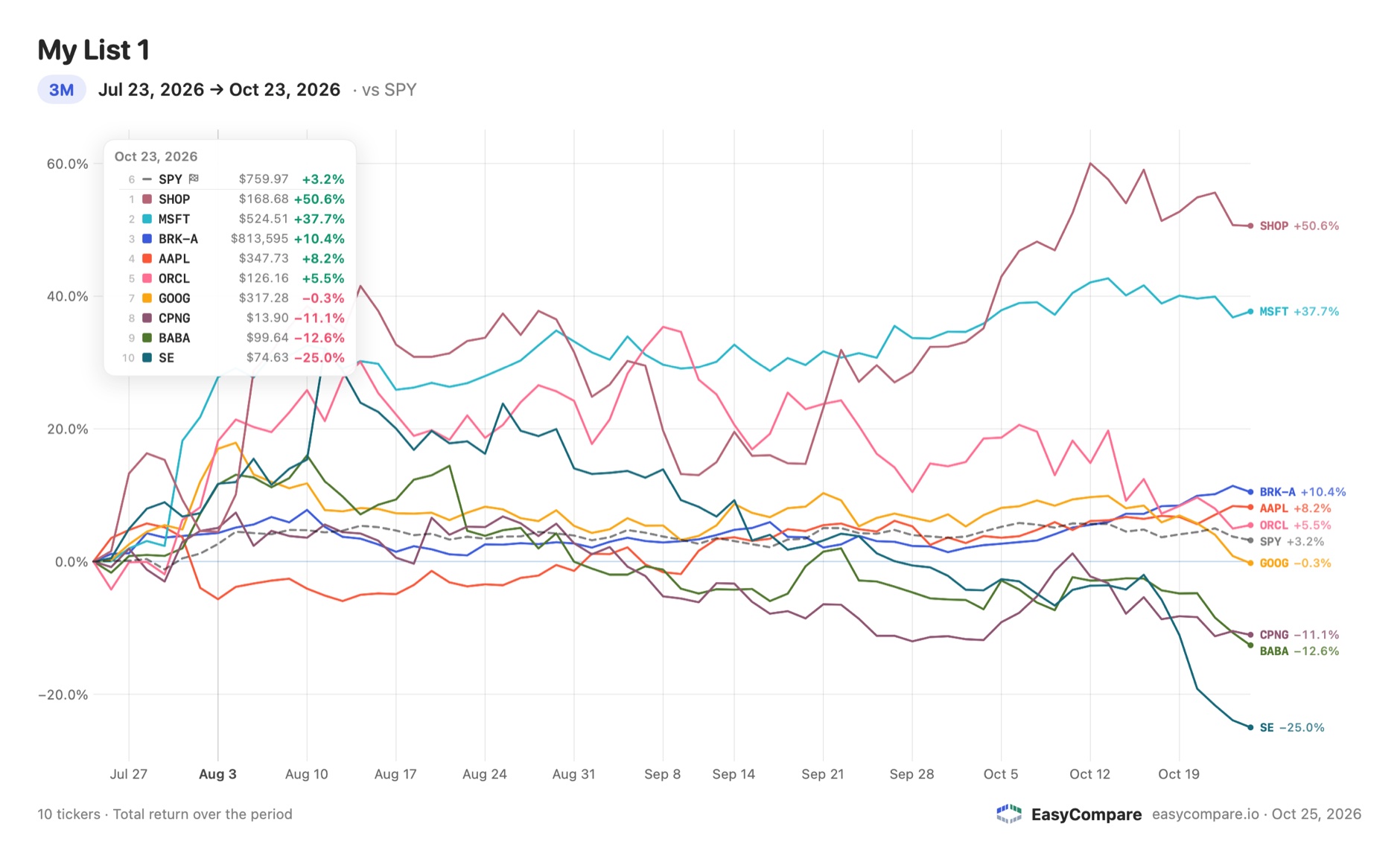
The camera button above the chart saves it as a PNG, copies it, or shares it through AirDrop, Messages, Mail or any app you have installed. The image shows the list name, the exact dates, every line's label and a ranked readout of returns, so it makes sense on its own.

  • Press ⇧⌘C to copy the chart from anywhere in the window
  • Save as PNG, copy, or open the Mac share menu
  • Exported at high resolution for sharp sharing
An exported EasyCompare chart: My List 1 over three months against SPY, with labels and a ranked readout

Which line is that?

Hover near any line to see which ticker it is. Where several lines cross, the nearest few are listed.

Periods stay in reach

When you scroll down to the rankings, the period bar stays pinned at the top, so you can change the period and watch the table re-rank.

Curated lists in quick search

Press / and curated lists appear in their own marked section below your lists.

Know what you're looking at

Hover a ticker for its full name and type, such as Stock · Technology or the fund's name.

Easier to read

Clearer sidebar lists, darker green numbers, and a fix for the sidebar when you resize the window.

Start with a curated list.

Open a curated list or create your own, then press ⌘K to add tickers.

macOS 14 Sonoma or later · Apple silicon and Intel · Signed and notarized by Apple · Updates automatically